
Get found locally
Set up a Google Business Profile
A free Google Business Profile puts your maker shop on Google Search and Maps. Every day, hundreds of people search "3D printing near me" — a profile is how they find you instead of a shop across the country. It takes about 15 minutes; verification can take a few days.
- 1
Open Google Business Profile
Go to google.com/business and click Create your profile (Google sometimes labels the button Manage now). Sign in with the Google account you want to own this listing (a dedicated business Gmail is ideal, but your personal one works).
google.com/business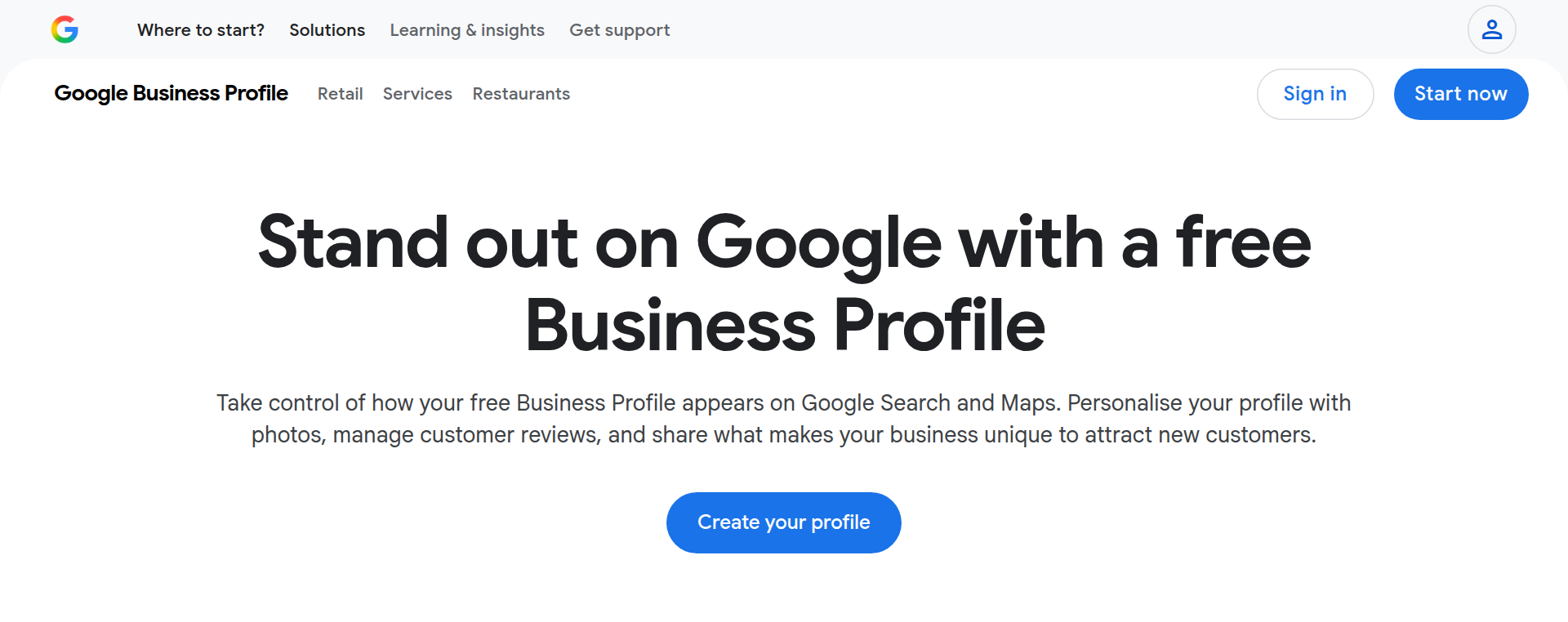
- 2
Name your business
Type your maker brand and what you do, e.g. "Hurst Creates — 3D Printing." Use the same name as your Assista 3D shop so customers connect the two.
business.google.comWhat's the name of your business?
Business nameNext - 3
Pick your category
Search for and select "3D printing service." You can add more categories later (Manufacturer, Prototype tool supplier) — your primary category matters most for search.
business.google.comChoose the category that fits your business best
Search: 3D printing service - 4
Show your location on the map
When Google asks whether you have a location customers can visit, choose Yes. A business that shows its location gets roughly 30% more views and clicks on Google than one that hides it — and it's what puts your pin on the map when a neighbor searches.
business.google.comDo you want to add a location customers can visit, like a store or office?
Yes Puts you on the mapNo - 5
Enter your pickup address
Type the address customers come to for their parts. Working from home and would rather keep your house off the map? Enter the pickup spot from your Assista 3D page instead (a store, a parking lot, a cross street), so Google and Assista agree on where to meet.
business.google.comWhat's the address?
Street addressCityState · ZIP codeNext Same as your Assista pickup spot - 6
Add where you deliver
Google then asks if you also deliver or meet customers elsewhere. Say Yes and add the towns and ZIP codes you cover — match the service radius on your Assista 3D page so the two agree.
business.google.comWhere do you serve your customers?
Add a city or area…Apple Valley · Victorville · HesperiaNext - 7
Add your phone and website
Add your phone number — some customers would rather call or text than use a website. For the website, use your Assista 3D shop link, assista3d.com/m/your-handle, so Google sends people straight to your instant quote.
business.google.comWhat contact details do you want to show to customers?
Phone numberWebsite: assista3d.com/m/your-handleNext - 8
Verify your business
Google confirms you own the business by phone, video, or a mailed postcard. Do this — your profile won't appear on Search or Maps until it's verified. Listed a pickup spot rather than your own address? Choose phone or video, since a postcard only works where you get mail.
business.google.comChoose a way to verify
PhoneVideoPostcard by mailVerify Required to go live - 9
Add photos and hours, then publish
Upload a few nice photos of your prints and set your hours, then publish — you're on Google Maps. Keep adding photos and replying to reviews; Google favors active profiles.
business.google.comAdd photos of your business
Upload print photosSet business hoursPublish - 10
Send your review link after every job
Reviews are the biggest thing that moves a small business up in Google results. In your Business Profile, tap Ask for reviews (or Read reviews, then Get more reviews) and copy your link. Text or email it to every customer once they have their part, and paste the same link into your Assista dashboard so it shows on your Assista 3D page too.
business.google.comGet more reviews
Read reviewsg.page/r/your-shop/reviewCopy Send after every job
Tips
- Show your location. A profile with a visible address or pickup spot gets roughly 30% more views and clicks than one that hides it.
- Use your Assista 3D shop link (assista3d.com/m/your-handle) as your website — every profile visitor lands on your instant quote.
- Send your Google review link after every job; reviews are the biggest driver of local ranking. Don't offer discounts for reviews — Google removes those.
- Post fresh print photos monthly — Google favors active profiles.
- Keep your hours, pickup address, and delivery area accurate so you don't turn away nearby jobs.